- Day 1: Brute Force Scenario -
Attempting A Brute Force Attack
Using Kali Linux to execute a Brute Force Attack against Domain Users
Quick Update
You may have noticed the Phase 3 title has change from Policies and Alerts to Attack Simulation. We've decided what we have in place is enough to test the SoC Lab. And see if our rules and configurations generate tangible alerts. Our first simulation is a Brute Force Attempt (Multiple successive login attempts) against our Windows VM's include Workstation A, Workstation B, and The Domain Controller.
The Brute Force Attempt
To begin we're using a simple netexec smb command against our virtual machines on our Kali Linux VM. This was set up in bash using a simple for i loop against 100 attempts. The full commands are in the code box below.
BruteForce.sh
                        for i in {1..100}; do
                            netexec smb 192.168.122.241 -u LabAdmin -p Password!
                            sleep 0.25s
                            netexec smb 192.168.122.221 -u ALabUser -p Hacker!
                            sleep 0.25s
                            netexec smb 192.168.122.162 -u BLabUser -p TestAttempt!
                            sleep 0.25s
                        done
After launching this script on our Kali machine we began seeing Alerts Populating, at the time of writing this section we were up to 51 Alerts, as shown below.
Failed Authentication Threat Hunter
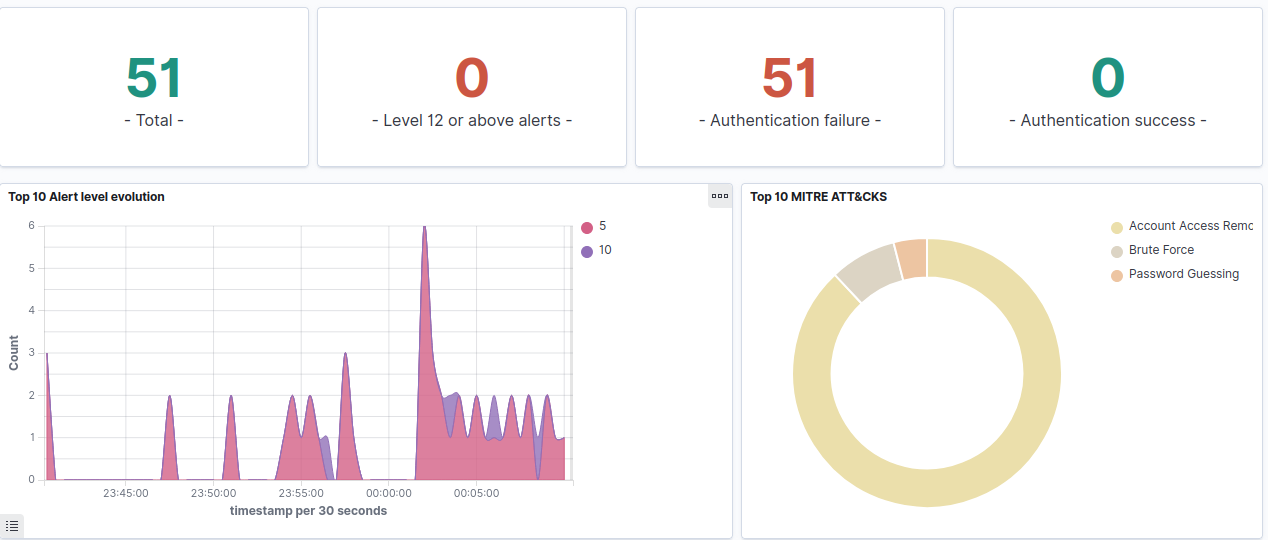
This attempt identified our Domain Controller was functioning as expected, we can see logins for SMB routing to the Lab DC. But not to our workstations, we attempted manual logins to ensure the agents were reporting logins, as well as using xfreerdp to attempt RDP connections. However due to configurations in place on our Windows Machines- I was unable to successfully connect.
Active Agents
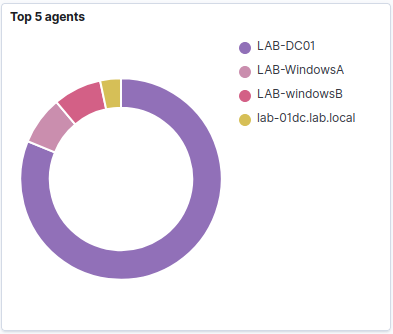
Simulation Success
This first simulation showed us three things, the Authentication Dashboard I built- did not work. The configurations for password policies and lockout configurations by Emma successfully deterred the manual attempts. And we were actively reporting across all 3 agents on our Windows Machine- and our Ubuntu SIEM Server was also reporting.
While a small initial test, it was a successful test, showing not only that our configurations prevented an immediate breach of confidential martian e-store information, but also prevented an automated incursion through brute forcing the smb protocol, a physical attack through password guessing.
We ended with 97 failed authentication alerts, 7 alerts for brute force attempts. A broken dashboard, and a new post.
Foot Note
While we were away; some changes were made, we hope you enjoy the new look. We also intend to attempt to complete 6 simulations this phase. With each phase consisting of 2 days, 1 attack, and 1 investigation.
Our final phase will be the full review of the SOC Lab Project, as well as some final words as to what we would do different, and where we would improve if we could.
As always, thank you for visiting, we hope you enjoyed your time here.
- Day 2: Brute Force Scenario: Report -
Reporting on the Brute Force Attack
Using Wazuh to detect a Brute Force Attack against our Domain Users
The Incident Report
Following the day after the brute force attempt, Emma drafted an incident report; Outlining the detections within Wazuh, totaling 104 attempts in one hour. Between 6:45 PM CST and 7:00 PM CST. After reviewing logs and taking the necessary actions to remediate the detected threat. Below you'll find the official copy.
August 18th Incident Report
Log Review
With a total of 104 Events, we began reviewing our logs, identifying suspicious events beginning with an unauthorized remote device at 192.168.122.113 blocking that device's inbound connections to our devices. We also noticed multiple attempts against our LabAdmin User Account, ALabUser Account, BLabUser Account, and Multiple other unauthorized user accounts.
Following this detection we advised all users to immediately update their user passwords to meet the minimum requirements and advised users to be aware of suspicious account activity and to alert us immediately. Continuing our review, we identified multiple events related to physical access of Workstations A and B; We advised that stricter security policies be followed after working hours due to the log-in attempts taking place after hours.
Scenario Completion
Our first scenario has been completed, we were able to detect, and identify multiple log in attempts within our SIEM, locate the origin, identify the protocol in use. Determine that it was from an external source on our internal network. Identify what accounts were being accessed, and amongst other technical details thanks to the configuration on our Agents.
Unfortunately due to a work injury, the evaluation time for the incident report was cut short; focusing primarily on the generalized details of the simulated attack and the immediate remediation of any available areas.
Foot Note
We appreciate your time, and hope you enjoyed the brief update. The second simulation will consist of malicious links, and powershell scripts. We hope we can detect them, and prevent any further damage from the source.
Thank you for the visit.
- Day 3: Malicious Network Scenario -
Hosting a Simulated Endpoint
Using Kali Linux to Host an HTTP Server and Transfer Malicious Files.
Set Up
To begin two powershell items were created; a folder-creation.ps1 and a process-network.ps1 these two scripts will be provided below. They were simple and simulated a file creation, and network connection script. Once created, after rotating the kali linux vm IP, using python3 an http server was created hosting both files. Lab User A. on Workstation A, convinced the Lab Admin to assist in downloading and executing the scripts.
Downloading and Execution
Using Invoke-WebRequest Lab User A, was able to convince Lab Admin to download both the folder creation script, and the process network script. Once downloaded the users bypassed the execution policy to run both scripts.
folder-creation.ps1
New-Item -Path "C:\HACKER" -ItemType Directory
process-network.ps1
$url = "https://khonsu.info"
Start-Process "msedge.exe" -ArgumentList $url
After running both scripts, our website appeared, and a new folder was created in the C:\ drive on Workstation A. We confirmed the event was present within the SIEM,and the connection was reporting on the http server. With the events reporting, we confirmed that our SIEM was functioning as intended. And decided to take this as another small success.
Foot Note
This was a smaller post, and we hope to do a full log review, and incident report tomorrow.
Thank you for visiting.
- Day 4: Malicious Network Scenario: Report -
Reporting on the Malicious Connection
Using Wazuh to detect a Unauthorized Powershell Session
The Incident Report
Below you'll find the official copy of the incident report from a malicious connection made on August 19th, two of our users were caught downloading and executing unauthorized scripts downloaded from an unknown endpoint.
August 20th Incident Report
Log Review
When checking the logs we see a process creation event in that Workstation A Launches a PowerShell Terminal at 6:04 PM CST, shortly after the end of the workday. Alongside this the credentials for Lab Admin were used to elevate the process.
Following this detection we began investigating workstation A, we immediately found two suspicious files located on the desktop, Folder-Creation.ps1 and Process-Network.ps1; when confronting Lab User A, they said Lab Admin kept them after hours to investigate their workstation for suspicious activity. We examined the scripts and realized they were non-malicious, and only created a folder, and connected to a website khonsu.info we reached out to Lab Admin and got told they were showing Lab User A some new things they learned.
After discovery and removal of these items, and the brief investigation on the device showing the previous commands finding multiple connections being made to 192.168.122.117 a new un-authorized device on our network. We gave both Lab User A, and Lab Admin formal warnings. Asking that they refrain from using work devices for personal use. While not malicious- the event was after hours, and unauthorized.
Scenario Completion
Our second scenario is now complete, we were able to identify the process execution, question the perpetrators, and block the suspicious connection. We determined that it was from an external source on our internal network, blocked the new IP Address, and enforced another password change.
Foot Note
Following a repitition of the previous work injury (leading to a more serious injury), Emma has taken the side-line and reviewed the report that was created, being unable to type properly in order to ensure efficiency and pace of completion.
We appreciate your time, and hope you enjoyed the brief update. The next simulation will make use of nmap, where we will use additional logs outside of the SIEM. We hope we can detect them, and prevent any further damage from the source.
Thank you for the visit.
- Day 5: nmap Scenario -
Running an nmap Scan
Using Kali Linux to Perform Network Discovery.
Foreword
We unfortunately did not have the opportunity to complete this scenario as planned. However, we learned valuable lessons from this project
Set Up
While we were away, the founders of the storefront had installed a new database, and FTP Server. They ensured Windows Firewall Logging was on, then asked us to ensure the network was properly configured for nmap scanning. We performed a network scan to identify open ports and services. Our findings are detailed below.
nmapscan.txt
                        PORT     STATE          SERVICE
                        21/tcp   open|filtered  ftp
                        22/tcp   open|filtered  ssh
                        23/tcp   open|filtered  telnet
                        25/tcp   open|filtered  smtp
                        53/tcp   open|filtered  domain
                        80/tcp   open|filtered  http
                        110/tcp  open|filtered  pop3
                        111/tcp  open|filtered  rcpbind
                        135/tcp  open|filtered  msrpc
                        139/tcp  open|filtered  netbios-ssn
                        143/tcp  open|filtered  imap
                        443/tcp  open|filtered  https
                        445/tcp  open|filtered  microsoft-ds
                        993/tcp  open|filtered  imaps
                        995/tcp  open|filtered  pop3s
                        1723/tcp open|filtered  pptp
                        3306/tcp open|filtered  mysql
                        3389/tcp open|filtered  ms-wbt-server
                        5900/tcp open|filtered  vnc
                        8080/tcp open|filtered  http-proxy
                        MAC Address: 52:**:**:**:**:7C (QEMU vNIC)
After this discovery we noticed our logs were not populating correctly in Windows Event Viewer, or Windows Firewall logs. Unfortunately after an hour of troubleshooting, we were unable to resolve the issue.
Conclusion
We were able to scan the network against our domain controller, and in order to ensure the lab continued properly, we needed to address the logging issues. While we both attempted troubleshooting and access attempts, we were unable to resolve the logging discrepancies.
Because of this, we'll be unable to finalize the report. While this was going to be the last section of the SOC Lab we unfortunately couldn't complete it as planned.
After working through this we've decided to end the lab here. We've both learned a lot from this experience.And our skills have improved significantly since the last post we made. With courses and training, we believe we are better prepared for future challenges and even a revised attempt later on.
Foot Note
We apologize for the delay, and being unable to complete this lab as planned. We hope to address these issues in a future revision when our skills are more developed.
Thank you for visiting.