- Day 1: Machine Set-Up -
Virtual Machines
Phase 1 consists of setting up the infrastructure required for the SoC Lab.
Definitions
- Security Operations Center (SOC)>
- A centralized location for cybersecurity professionals to oversee an organizations security posture, ensuring an active immediate response to cyber threats. With continuous monitoring integrating people, processes, and technology to detect, investigate and mitigate potential security incidents.
- Virtual Machines
- A software based emulation of a physical computer. Operating as separate computing environments within a host machine. Using dedicated CPU, Memory, and Storage borrowed from the host.
- Security Information and Event Management (SIEM)
- A cybersecurity solution that collects, aggregates, and analyzes security data analyzes security data from an organization's IT environment to detect, investigate, and respond to threats in real time.
- Red-Team
- A Red Team is a group of cybersecurity experts or ethical hackers who act as adversaries, simulating attacks on an organization using real-world techniques.
- Blue-Team
- A Blue Team is a group of cybersecurity experts that are responsible for organizing an organizations defense. Defending against attacks, identifying risks, and mitigation of identified risks.
Project Scope
The outlined scope is to deploy a secure virtual environment simulating an enterprise network. Configure centralized log collection from monitored Linux and Windows Endpoints. Detecting common attacks against the simulated environment, documenting and investigating attacks using a SIEM, and producing professional incident reports.
The Environment will consist of employee workstations running Windows 11, configured with system and PowerShell logs, and an Intrusion Detection Agent. A Windows Server serving as a Domain Controller, with Active Directory, DNS, and DHCP configurations. An Ubuntu Server to serve as a Linux Endpoint running an Intrusion Detection Agent and System Logging.
For a Security Information and Event Management Server (SIEM), we’ll be using an open-source application to consolidate logging to a centralized location. As a simulation attack vector, we’ll set up a Kali Linux VM for authorized, safe testing within the virtual environment.
Documentation will be created for the Environment, including Virtual Machines, Network Configurations, Logging Configurations, Software Inventory, Standard Operating Procedures, Detection Rules, Attacks, and associated Incident Reports.
The final entry will include an outlined demonstration of the simulated lab, an overview of the architecture, and the logging pipelines. At a minimum, two simulated attacks, showing detection, investigation, and response procedures. Alongside a summary of learned material and areas we believe we could improve upon.
Initial Set-Up
For the initial setup, we installed the required operating systems for the SOC Lab. Built the outlined scope together and are working through the initial setup of the domain controller, a single Windows 2025 Server. We'll be using two endpoints with Windows 11 Pro installed as User Work Stations. A singular Ubuntu Server to act as a Linux Endpoint. Then, a Kali Linux machine for performing the Red-Team Attacks.
As we are a two-person team, the responsibilities will be split between the two of us. Working together to configure, troubleshoot, document, and test the lab environment. Where we will be 'simulating' an enterprise environment. Although we'll be working together for that part, for later sessions that include Defense and Attacks, the blue-teaming will be handled by Emma, while I (Matthew) will handle the red-teaming.
Current Inventory
Our current inventory consists of the before mentioned virtual machines, due to resource scarcity the minimal required resources were used in these conditions.
System Inventory
| Name | Operating System | CPU's | Memory | Storage (Size) | IP Address | Description |
|---|---|---|---|---|---|---|
| Lab-01dc | Windows Server 2025 | 2 vCPUs | 6 GiB | 50 GiB | 192.168.122.241 | Windows Domain Controller (AD, DHCP, DNS) |
| Lab-01kali | Kali Linux | 2 vCPUs | 4 GiB | 25 GiB | Dynamic | Red-Team Attack Machine |
| Lab-01ubserv | Ubuntu Server | 1 vCPU | 4 GiB | 25 GiB | 192.168.122.xxx | Linux Server Endpoint |
| Lab-windows-01a | Windows 11 Pro | 2 vCPUs | 4 GiB | 64 GiB | Dynamic | Windows User Endpoint |
| Lab-windows-01b | Windows 11 Pro | 2 vCPUs | 4 GiB | 64 GiB | Dynamic | Windows User Endpoint |
Foot Note
To ensure proper documentation records and accurate configuration records, given the required implementations, documentation will not be uploaded until the final entry. Many of the tables and entries, however, will contain the information in the documentation. Thank you for visiting!
- Day 2: Domain Controller & Windows Endpoints -
Domain Set-Up
Configuring the Active Directory, DNS, DHCP, and Joining the Windows EndPoints.
Definitions
- Domain Controller
- A Domain Controller is a server that specializes in validating, and authenticating users and devices on a network, ensuring only authorized individuals can access domain resources.
- Active Directory
- A Microsoft Directory Service, that is used for centralized authentication and authorization of network resources.
- DNS
- Domain Name System, A service that translates IP Addresses into Human Readable Domain Names.
- DHCP
- Dynamic Host Configuration Protocol, a network protocol used to automate IP address assignment and other network configuration parameters on connected devices.
Tasks Completed
- Active Directory Services
- DNS Services
- DHCP Services
Configuring Active Directory Services, DNS Services, and DHCP Services on Windows Server 2025 included opening Server Manager, clicking Manage on the top toolbar, selecting Add Roles and Features, then selecting each item from the Server Roles list. After the system installs these components and initiates a restart, you may see a few warnings about configuring a static IP address. Emma completed this yesterday using the built-in Network Settings in Windows. You navigate to the current active Network, select Edit on the IP Assignment, and update it from Automatic (DHCP) to Manual. You can then set it to a specific IP Address within your network range. Or use the terminal to run ipconfig, and pull the current IP Address, Subnet Mask, and Default Gateway. In our case, we used the latter; our initial virtual network failed to provision a 10.0.0.1 network, and we resorted to the default virtual network using a 192.168.122.1/24 network.
From there, you follow the prompts provided to configure Active Directory Services, while DNS and DHCP services automatically configure based on the static IP Address. Here, we set our domain to lab.local and assigned this Domain Controller Server the highest authority within the domain forest. The setup took no longer than 10-15 minutes after we needed at least 3 accounts. An administrative account to ensure we could deactivate the default administrator account, and two user accounts, for use with our endpoints. Lab A User and Lab B User were born with LabAdmin being their creator. We needed to finalize the Windows 11 Pro setup on both endpoints. Then join them to our Domain. After logging in, we headed to the network settings on both endpoints and manually configured the DNS servers for IPv4, setting our default to Lab-DC01.Lab.Local's IPv4 address of 192.168.122.241, and our secondary record is Google 8.8.8.8. This took a total of 30 minutes of troubleshooting and googling between the two of us. Now, we were able to communicate with our domain controller and officially enroll Lab A User and Lab B User to their workstations with the help of LabAdmin.
Delayed Tasks
Today was a shorter day, with most of the work completed at the very end. Tomorrow, we intend to work on more endpoint setup, including getting Ubuntu Server to communicate with our Domain Controller, finishing Windows Updates, and installing the forgotten SIEM Server that will host our SIEM Software. After the SIEM Server is configured, we'll begin onboarding our endpoints to it.
Foot Note
So far, the majority of the troubleshooting has been completed by Emma, and I (Matthew) am the one breaking things. We appreciate your visit, and hope you enjoy your night.
- Day 3: Installing the SIEM Part 1 -
Reconfigurations
Configuring Ubuntu Servers, and SIEM Set-Up. Then breaking it!
Preface
This will be a two-part entry. The server set-up fell apart right at the end. Luckily, we successfully configured and deployed the Wazuh agents. Alongside the Server, Indexer, and Dashboard. However, we will need to do it again.
Lab-01UbServ
For the initial Linux endpoint Lab-01UbServ, we needed to reinstall it with additional memory and storage. We’ve decided to use it as the SIEM server and Linux Endpoint. We needed to join it to the Windows domain and allow access via Kerberos authentication from Active Directory. With Ubuntu Server, we set the static IP address to 192.168.122.134/24 in the netplan configuration and added the lab-dc01.lab.local IP address for DNS routing. We then used apt to install sssd, sssd-tools, krb5-user, adcli, samba-common-bin, oddjob, oddjob-mkhomedir, and packagekit for communication with the Windows Environment.
From here, we began installing the Wazuh components for the SIEM on Lab-01UbServ. Starting with using curl to download the Wazuh installer script and Wazuh configuration files. Following the assisted installation guide, we set the IP addresses for the indexer, server, and dashboard on the Ubuntu server.
After we installed the agents on the Windows machines, we were able to connect them to the Wazuh dashboard hosted on Lab-01UbServ. Unfortunately, I installed the wazuh-agent overwriting the wazuh-manager, crashing the server, rendering the dashboard unusable.
Tonight, we spent over 4 hours working on this item together. We had to do some troubleshooting because the domain wasn't pulling in our administrative group on the Windows machines, but after following the installation and pointing the agents to the Lab-01UbServ Server IP. They were reporting inside the Wazuh Dashboard.
Foot Note
We apologize for the lack of content tonight, but hope you enjoyed reading about our mishaps. Thank you for visiting!
- Day 4: Installing the SIEM Part 2 -
Additional Configuration
Reconfiguring Ubuntu Servers, and SIEM Set-Up. And, additional policies.
Preface
This second part will show evidence of the working connection and some additional configurations we're working on. The Ubuntu Server OS, along with the Wazuh Server, Indexer, and Dashboard, were all reinstalled onto the lab-01ubserv server.
Lab-01UbServ
For continuation of Lab-01UbServ, after the operating system was reinstalled due to the wazuh-agent package incident. After the first log-in, it was connected back to the domain on lab-01dc.lab.local. All components of the Wazuh-based SIEM Server were installed again. Once configured and working, we ensured that the connection to our three Windows endpoints was active on the dashboard.
Lab-01WindowsA, and Lab-01WindowsB
On both Windows workstations, Emma connected the Wazuh Agents to the SIEM server's IP address. Ran the agent and pulled down the Authentication Key. After logging into the dashboard, she verified that the three agents on LAB-WindowsA, LAB-WindowsB, and LAB-01DC were reporting. After an additional verification after Lab-01UbServ was re-connected, we installed sysmon for additional logging.
Lab-01DC: Group Policy Configuration for Windows Firewall
After ensuring Wazuh was reporting, we decided our next step was to review group policies. From here, Emma began working on configuring a firewall policy for outbound connections on our endpoints.
Outbound Firewall Rules
| Rule Name | Port | TCP or UDP | Description |
|---|---|---|---|
| MS RCP | Port 135 | TCP and UDP | Microsoft Remote Procedure Call technology, blocked on both TCP and UDP. |
| NetBIOS | Port 137-139 | TCP and UDP | NetBIOS over IP, blocked on both TCP and UDP. |
| SMB | Port 445 | TCP | Server Message Block blocked over TCP |
| TFTP | Port 69 | UDP | Trivial File Transfer Protocol blocked over UDP |
| Syslog | Port 514 | UDP | System Log blocked over UDP |
| SNMP | Port 161-162 | UDP | Simple Network Management Protocol blocked over UDP |
| IRC | Port 6660-6669 | TCP | Internet Relay Chat blocked over TCP |
After we decided to try and secure our accounts and devices. With some more information gathering Emma set up the following account policies in relation to Passwords and Lockouts.
Account Policies
| Policy | Setting |
|---|---|
| Enforce Password History | 3 Previous Passwords Remembered |
| Maximum Password Age | 30 Days |
| Minimum Password Age | 0 Days |
| Minimum Password Length | 12 Characters |
| Password Complexity Requirements | Enabled |
| Account Lockout Duration | 10 Minutes |
| Account Lockout Threshold | 5 Invalid Attempts |
| Allow Administrator Account Lockout | Enabled |
| Reset Account Lockout Counter | 10 Minutes |
Foot Note
We decided after these policies to give ourselves a break, we gathered some screen shots from the dashboard to show our success today. As always we appreciate the visit.
Wazuh Dashboard
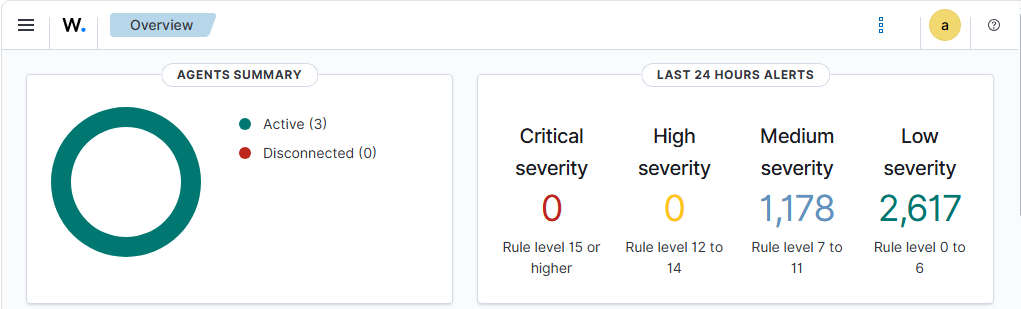
Medium Severity Chart
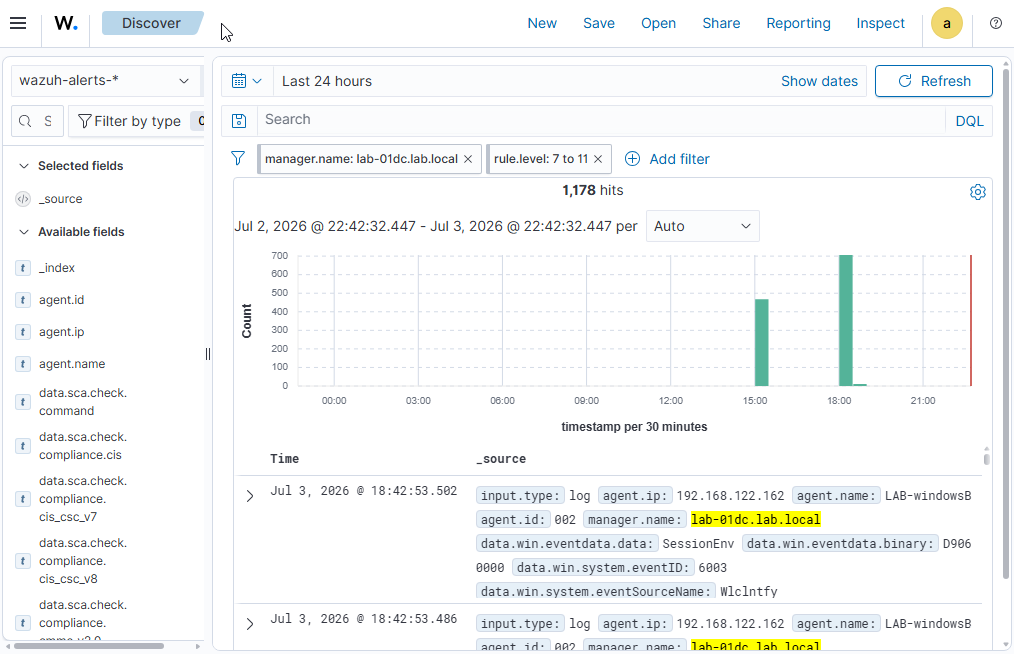
- Day 5: Roadmaps -
Planning the next phase.
After getting the agents connected and the dashboard running, we are met with a lot of ingested
data.
Preface
To accurately build a functional SoC, we need to identify metrics that are appropriate to the simulated environment. To do this, we need to build a company persona to guide activities for a few days.
The Wazuh Dashboard
When initially signing in, we can see our active agents, currently there are three, with an additional minimalist Ubuntu server being set up. Once connected and configured, we’ll have a total of four active agents; each will transmit logs from the host machine to our dashboard. From here, we'll need to build views to handle the vast amount of data coming in. We could filter it, but in terms of logging, everything is worth something.
Our current outline identifies Authentication, Failed Logins, Process Creation, Network Connections, and Malware Detections as primary dashboards we should build out. To do that, we’ll need to create a few different visualizations for each subject area and work them into these dashboards. As each alert is built off the Wazuh database language, we first have to use our virtual machines for some simulated work, in order to populate some logs that we can filter through and begin working on these dashboards together.
Company Persona
To ensure we can get as close as possible to what a real environment would look like, we're going to simulate a small-business e-commerce website. To ensure we adhere to proper privacy ethics, we'll use a Martian small-business e-commerce model, with Martian names, addresses, and storefronts.
With that, we’ll be able to properly store payment methods, product invoices, vendor invoices, and customer information. All valuable secrets a bad actor may find interesting when navigating through our environment.
Foot Note
With the lack of logging, due to these machines being set up. And the unfamiliarity of working with Wazuh, today is primarily a planning session in order for us to have a better boilerplate to work with. The documentation and articles followed will be posted below from previous days.
We appreciate the visit, and hope to see you again soon.
External Links - You're leaving Khonsu!
Wazuh - Installation Guide
Wazuh Agent - Installation Guide
Wazuh - Creating Visualizations
Linux Vox - Connecting Linux to a Windows Domain
Linux Capable - Configuring a Static IP on Ubuntu
- Day 6: Attempted Logging -
Configuration Requirements
While creating additional documents related to our simulated environment, we noticed some missing
logs from previous installed components.
Attempted Log Population
During the last entry and the beginning of this entry, we noticed the logs we did have were quite lackluster. We didn't want to worry about that after today. Since we’re not in a full-time enterprise environment with hundreds or thousands of employees, we set up a micro-workday to create spreadsheets, vendor information, and client orders.
While working on our spreadsheets, we realized we needed a shared network drive. Lab-01dc had a folder created on it that Lab Admin shared with Domain Users. From here, we uploaded a few spreadsheets and began generating logs. As Lab A User and Lab B User were some busy employees, they forgot to lock their computers while running to grab coffee, forgot their passwords when they did lock their workstations, and downloaded some fun applications they use at home. Lab A User even tried to access the Wazah Dashboard and uninstall their agent.
Configuration Changes
After populating these logs, we noticed that some events Sysmon should have logged, such as process creation, were not. After a quick look at the agent’s configurations and a double-check of the documentation, we found we needed to configure our agents a bit more. While also noticing our Wazuh-Server could use a bit more configuration. We'll be unable to post entries for the next few days, and Day 7 may be delayed until later this week. During that time, we'll be reviewing documentation and identifying where we're missing essential information within our agents, and configurations on our server.
Foot Note
As a reminder we're actively learning this material as we set it up. We've noticed the DC has enough logs for authentication and logins to monitor those two areas, however we want to be more granular with our devices themselves, to ensure proper visibility into these devices, Lab User A can be seen attempting to uninstall the Wazuh agent, but other activities such as opening PowerShell went un-noticed with the base configuration.
We appreciate the visit!
- Day 7: End of Phase 1 -
Phase 1 Deliverables
With completion of the configuration and initial set-up of our SIEM Server, and Infrastructure.
We're providing our initial set of deliverables.
Preface
This entry may flow differently than normal, rather than fine tuning each segment, we've decided to outline what we have ready to use.
Current Documentation SoC Inventory
Sysmon Log Collection
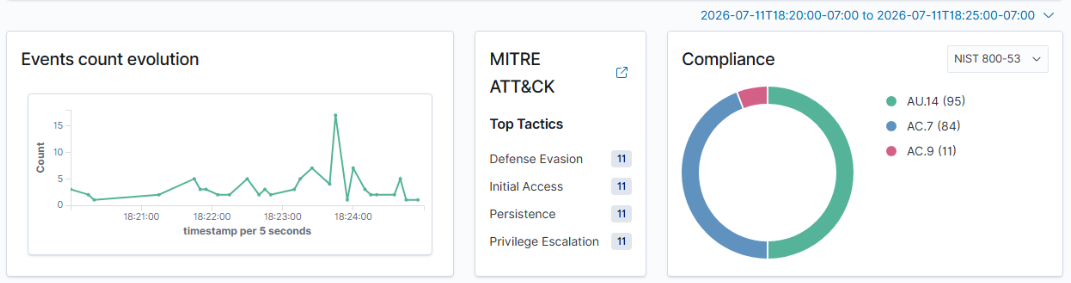
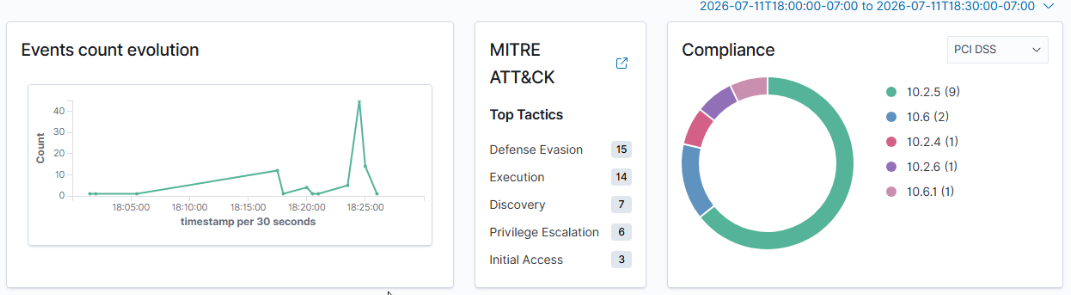
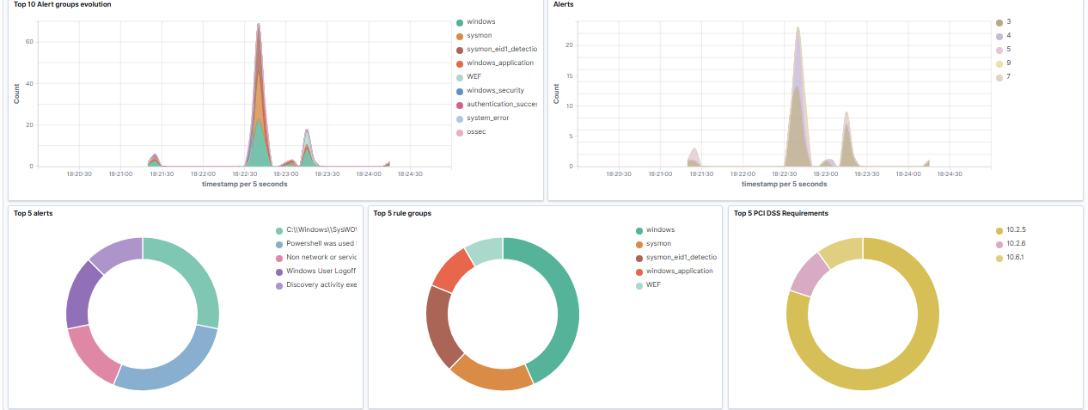
After making the previously mentioned change to the configuration of the Wazuh Agents we were able to visibly see new events populating within Wazuh. Provided below will be screenshots for examples.
Ubuntu Failures
Previously, three servers were configured for Ubuntu Server, only one remains now. Lab-01UbServ, which hosts the Wazuh Indexer, Server, and Dashboard. With this we made a decision to configure and install an Ubuntu 20.04 workstation. Despite not being included into documentation yet, due to scheduling constraints between work and coursework we decided to focus on finalizing what we did have set up tonight.
The Wazuh Manager does include an embedded agent that reports with-in the server as Agent 000, however the logging provided is not easily accessible. Leading to the decision to create an additional Linux Endpoint Virtual Machine.
Wazuh Server
The Wazuh Server has been fully installed, we have agents, logging, and an active connection between the server and endpoints. With each server actively generating logs, vulnerabilities, and compliance requirements.
We now have an opportunity to decide on a framework to follow, that models what a real e-commerce business would use, to harden our environment further.
Simulated Start-Up
Initial document creation and work environments have started to be created as we worked through configuration and installation of the Wazuh Server and Agents. This is the initial foundation required for our attack surface in later phases.
Windows Environment
We've fully configured a small Windows Environment with a Domain Controller including DHCP Services, DNS Services, and Active Directory Services, alongside domain joining each workstation and an Ubuntu Server.
Screenshots
DC Events
Workstation Events
Threat Hunting Events
Foot Notes
While we've made progress, this has been a growth experience for Emma. So I've asked what her favorite topic learned recently was in relation to CyberSecurity. Her response was Multi-Authentication and Social Engineering; both have been topics of multiple conversations in the last few weeks between us. This has also been a growth experience for me, as teaching someone else topics you're learning along side them is an interesting experience.
As a reminder to anyone else who may be learning new things on top of your day to day life, remember to be patient and kind. As failures are not final, and forgiveness makes everyone's lives brighter.
Thank you for visiting.